
PAGE CONTENTS

AfriGIS Web Services for Google Sheets
The AfriGIS Web Services for Google Sheets enables you to add Geocoding, Route Optimisation, Static Map Routes and a variety of other AfriGIS web services to your own Google spreadsheet containing your customer addresses.
Instead of relying on (and waiting for) your company’s software developers to implement the web services, you can quickly use these custom functions within a familiar spreadsheet environment. The add-on will provide a new menu with which to run the AfriGIS functions.
If you prefer to use Microsoft Excel, we have a similar solution for you too – please contact [email protected].
Jump to:
[fancy-ul style=”arrow” variation=”blue”]
- Install the add-on
- Register for a trial AfriGIS account
- Save your AfriGIS credentials
- Run the add-on
- Sign up for a production key
1. Install the add-on
You will only need to do this once for your Google account.
1.1. The add-on is currently available for limited testing and not available to the public in the general Chrome web store. Click on the icon below to open the add-on:

1.2 Click on the blue +FREE button to add it to your account.
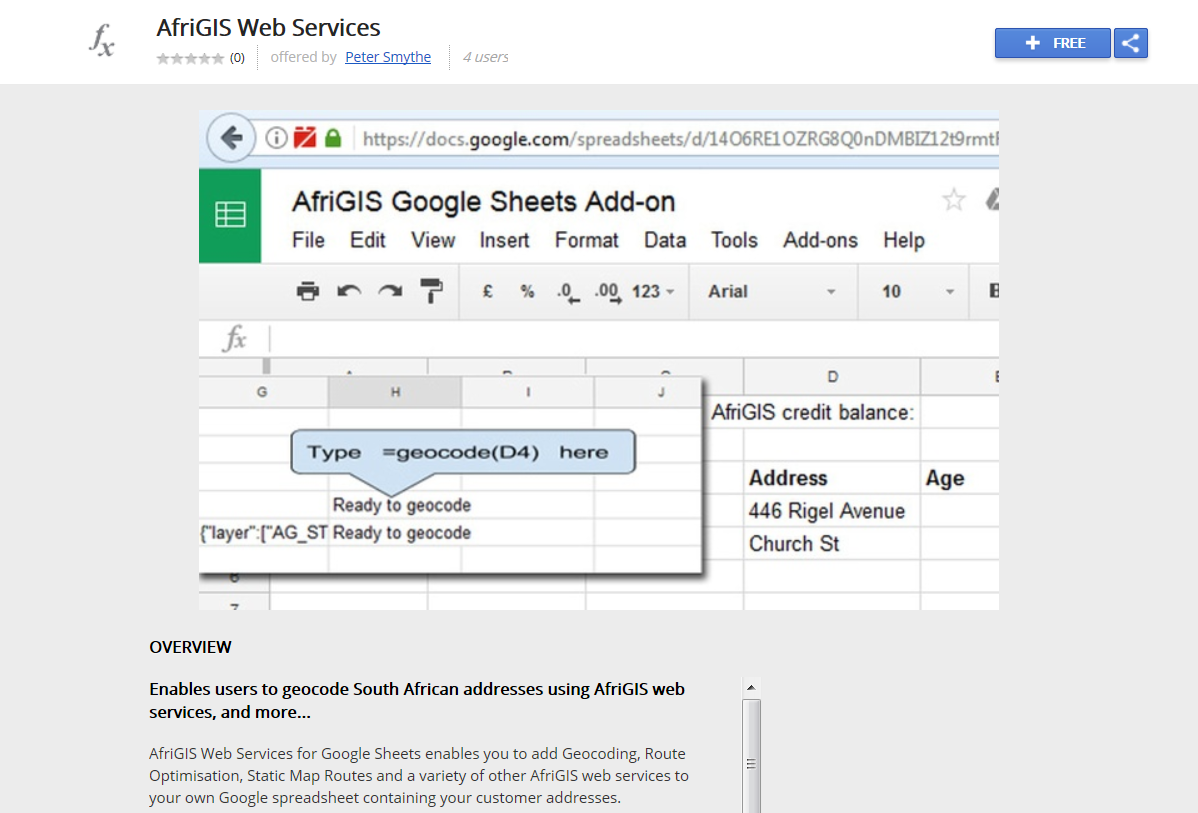
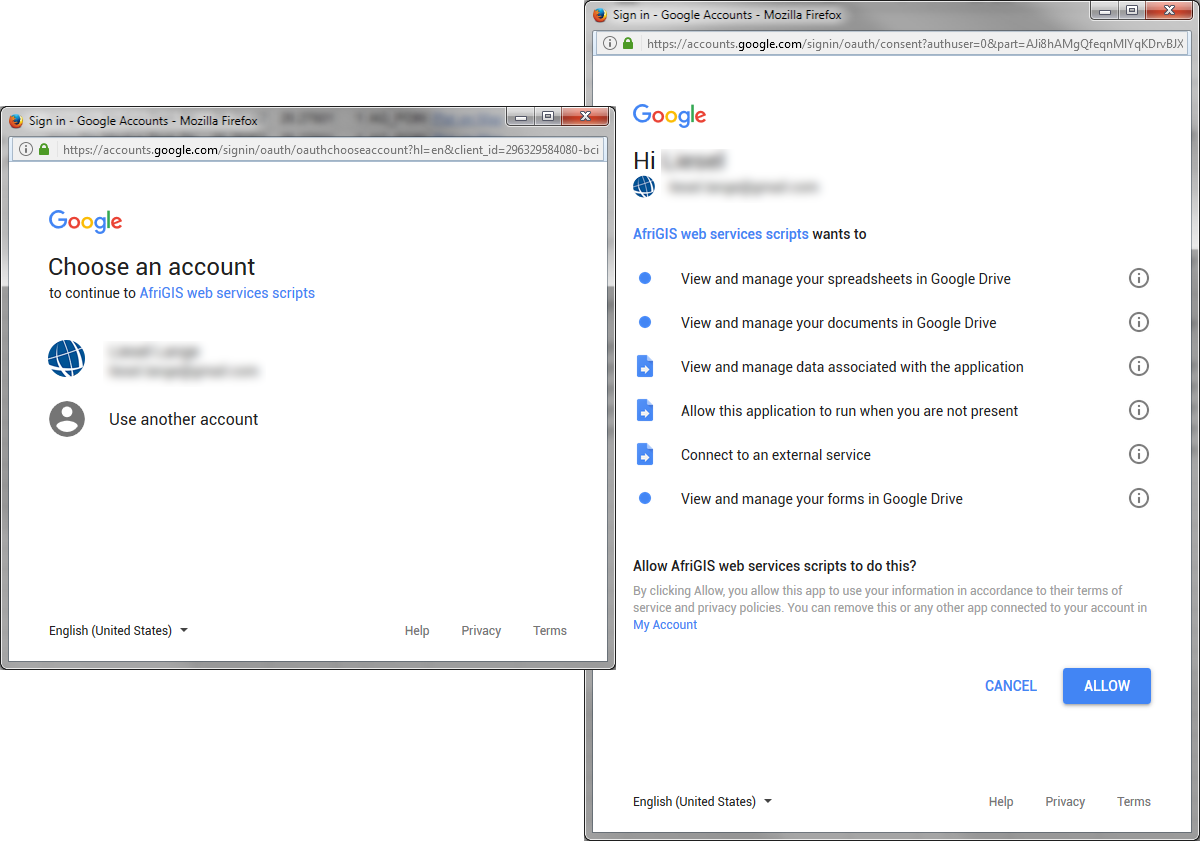
1.3 Google Scripts will automatically take you through the once-off process to authorise the add-on. You will need to give the add-on permission to access your sheets and to connect to AfriGIS’s external web services.
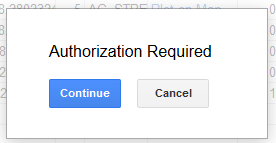
Click on Continue, select a Google account to use, and review the permissions requested by the add-on. If you accept them, click Allow to continue.
1.4 Now open your Google spreadsheet containing your customer data that needs to be processed, or open our sample data and create a copy.
2. Register for a trial AfriGIS account
You will need to sign up for a free trial AfriGIS account, which will provide you with a key and a secret in order to test the add-on. This will allow you to test the following functions for a maximum of 50 calls per day, for 60 days:
- Geocode
- Reverse Geocode
- Optimise Route
- Plot Static Map Route
Skip this step if you already have an AfriGIS account.
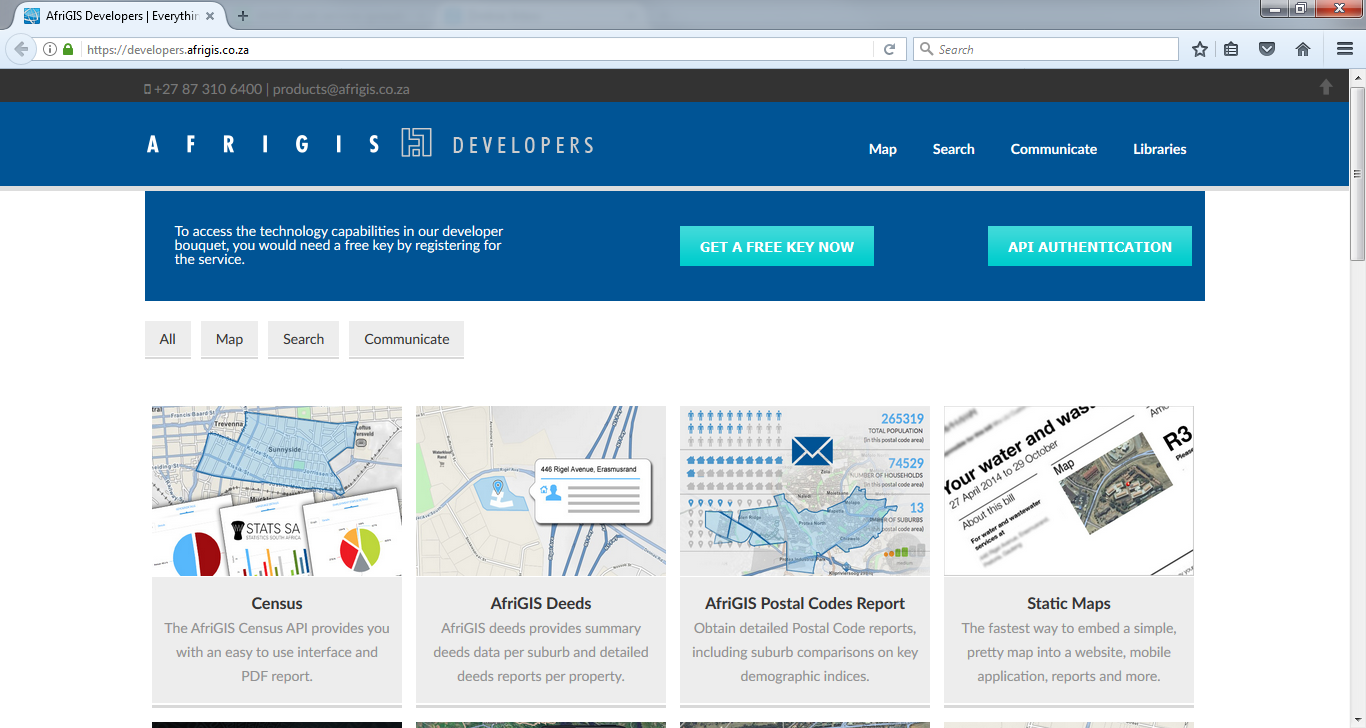
2.1. Browse to https://saasregistration.afrigis.co.za/, which is also reachable from the AfriGIS Developers website by selecting the Get a free key now button.
2.2. Enter your personal details, including your mobile number. We need this in order to send you a One-Time Password (OTP).
2.3. You will be sent an email with the trial key and secret. You will need to enter these details, just once, in the next section.
3. Save your AfriGIS credentials
You should now enter your AfriGIS credentials, which will be saved to your Google account. They will not be shared with other users with whom you share your spreadsheet, so they will be protected.
3.1. Click on Add-ons > AfriGIS Web Services > Update AfriGIS credentials.

3.2. Enter your AfriGIS Key and AfriGIS Secret in the prompts.

4. Running the AfriGIS functions
The add-on provides access to AfriGIS web services. The more common and familiar ones would be:
• Geocode
• Reverse Geocode
• Optimise Route
• Plot Static Map Route
• Send to Navigator Inbox
• Deeds Details
Example: geocode
Step 1: To Geocode, type in the formula =geocode(D4) into any free cell
Note: D4 is the cell containing the address, alter accordingly.
The function will not actually perform the lookup yet. It should return Ready to geocode, or an error message.
Step 2: To geocode additional rows, copy the formula down to the extra rows
Step 3: Select the range of cells containing the geocode formula
Step 4: From the Add-ons menu > AfriGIS Web Services > Run > Geocode
The geocoding results (including the latitude and longitude) will be saved in the cells to the right of the geocode formulas.
More info
It can easily be extended to provide access to any of the web services listed on the AfriGIS Developers website. Please contact [email protected] for more information.
These can be accessed through the AfriGIS functions, like =geocode(), which can be placed anywhere in the spreadsheet, referencing your business’ data in the usual way (a A1 type cell reference). The output of the AfriGIS function is typically stored in the cell to the right of the function and possibly extending further to the right.
Hint: Do not combine multiple functions in one cell formula, and only reference a cell on the same sheet, using a simple A1 or B$1:C3 notation. Anchoring with $ is allowed.
The AfriGIS function is only executed when clicking Run from the Add-on menu, otherwise your credits will be used up each time the page is refreshed.
Also note that there is a mechanism to prevent the function from being accidentally run a second time. If the cell containing the AfriGIS function also contains a note (similar to a cell comment in Excel) with the text “Done”, then it is not run again. Right click on the cell or range of cells and select Clear notes.
To run the web services, select a range of cells containing the AfriGIS functions and select Run from the Add-on menu. This range can also contain other formulas or blank cells – these will simply be ignored.
For help on specific functions, see:
• Geocode
• Reverse Geocode
• Optimise Route
• Plot Static Map Route
• Send to Navigator Inbox
• Deeds Details
5. Sign up for a production key
You might notice that Deeds Details and Send to Navigator Inbox are not allowed for trial keys. In order to access these, and many other web services, you will need to sign up for a production key. Please contact [email protected] to initiate the process.