
PAGE CONTENTS

AfriGIS geocode() for Google Sheets
The AfriGIS Web Services for Google Sheets enables you to add Geocoding, Route Optimisation, Static Map Routes and a variety of other AfriGIS web services to your own Google spreadsheet containing your customer addresses.
Instead of relying on (and waiting for) your company’s software developers to implement the web services, you can quickly use these custom functions within a familiar spreadsheet environment. The add-on will provide a new menu with which to run the AfriGIS functions.
Return to AfriGIS Web Services for Google Sheets
4.1 Geocoding
Geocoding is the process of converting an address to a coordinate (latitude & longititude). For example, the input would be
446 Rigel Avenue South, Erasmusrand, Gauteng, 0181 (saved in cell D4) and this address would be geocoded to -25.80871, 28.256111. AfriGIS geocode also returns the cleaned, properly formatted address, the confidence level of the match and a hyperlink to plot the address on AfriGIS maps.
Step 1: To Geocode, type in the formula =geocode(D4) into any free cell
Note: D4 is the cell containing the address, alter accordingly.
The function will immediately validate that the input (cell D4) is in the correct format (a string, or number for Reverse Geocoding) but it will not actually perform the lookup yet. It should return Ready to geocode, or an error message.
Step 2: To geocode additional rows, copy the formula down to the extra rows
Step 3: Select the range of cells containing the geocode formula
Step 4: From the Add-ons menu > AfriGIS Web Services > Run > Geocode
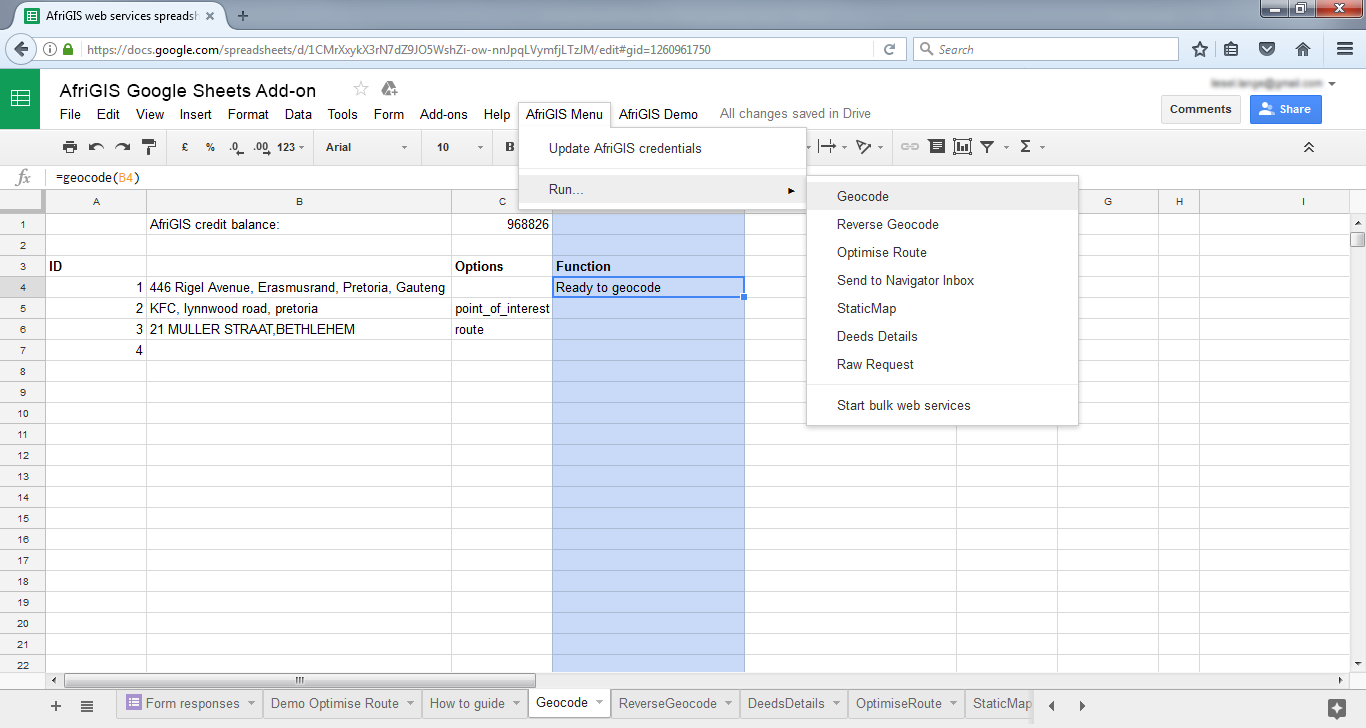
The geocoding results (including the latitude and longitude) will be saved in the cells to the right of the geocode formulas.
Note: The cell’s note will change to Done if that row was successful; alternatively an error message will be written into the cell to the right.
 (add screenshot of Out of credits error message)
Also see
Reverse Geocoding
Optimise Route
Plot Static Map Route
Send to Navigator Inbox
Deeds Details